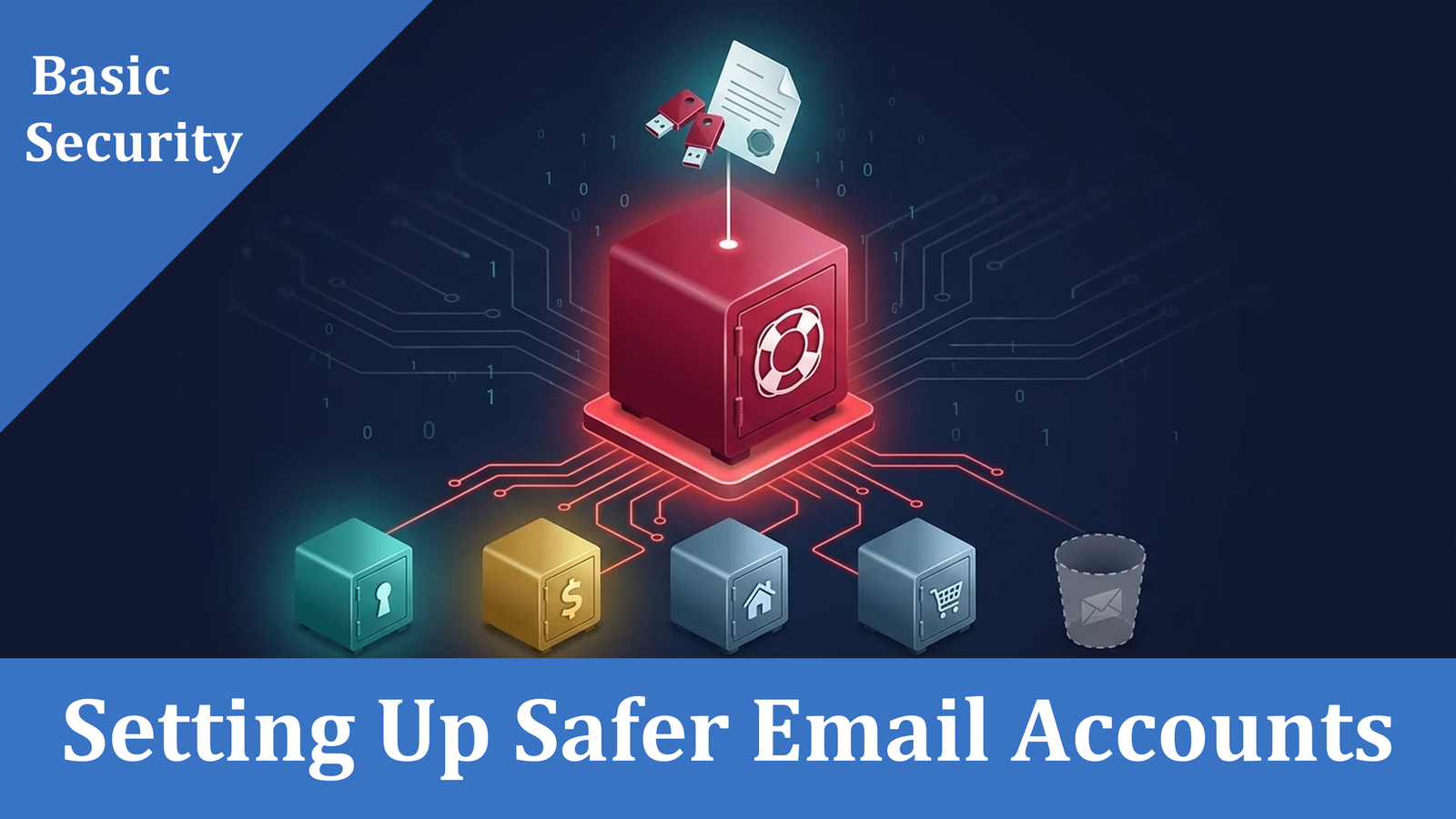
Setting Up Safer Email Accounts
A step-by-step guide in plain language
What You Are Building
You will create six email addresses. Each has one job. Keeping jobs separate means that if one account is ever hacked, the damage stays small.
- Rescue email: the safety net. If you get locked out of any other account, this is how you get back in. It does nothing else.
- Password manager email: used only to sign in to your password manager (an app that remembers all your passwords for you).
- Money email: banks, investments, cryptocurrency exchanges and brokers, and any other financial accounts.
- Family email: family and friends, doctors, lawyers, government services.
- Social and shopping email: social media, online stores, subscriptions.
- Junk email: free trials, contests, and any website you do not fully trust.
Words Used in This Guide
- Passphrase: a password made of several random words, such as "maple orbit candle river tooth lamp." Long and easy to remember.
- Authenticator app: an app on your phone that shows a six-digit code that changes every 30 seconds. You type the code in after your password as a second proof. It is far better than no second step, but a security key is stronger.
- Security key: a small USB or tap-to-phone device that proves it is really you. A hacker cannot copy it from far away.
- Recovery codes: a list of one-time codes the email company gives you. Each works once if you lose your security key.
- Recovery address: a backup email an account can use to help you back in if you are locked out.
Before You Start
- Buy two security keys (look for ones labeled "FIDO2"). A third one is a good spare if you can afford it. If you cannot get them yet, you can start with an authenticator app on your phone as a temporary measure, but plan to switch to keys as soon as you can (see the box at the end of Part 3).
- Gather paper, a pen, and pick a safe place to keep what you write down, such as a home safe or a locked drawer.
- Use a computer that is up to date and that only you use. Do this when you will not be interrupted.
Tip on addresses: Do not put your real name, birth year, or words like "vault" or "password" in any of the new addresses. Pick something unrelated and plain.
Part 1: The Rescue Email
This is the most important account. Treat it like the spare key to your house.
- Sign up for a new email account with a company such as Proton Mail. Call this one your Rescue email. Use a different company than the one you will pick for your Password manager email.
- Choose a passphrase of six random words, using a method called Diceware (explained below). Memorize it and also write it on paper.
- Set up both security keys on the account. If you do not have keys yet, use an authenticator app on your phone as a temporary measure and switch to keys as soon as you can. Then print or write down the recovery codes and keep them with your paper.
- Do not add a backup email or phone number to this account. Your keys (or, until you have them, your authenticator app) and paper codes are its only way back in.
- Never give this address to any website, store, or person. It is for rescue only.
What Is Diceware?
It is a way to let dice pick your words, so the choice is truly random. Roll a regular die five times to get a five-digit number, such as 4-2-6-1-3. Look that number up in a free printed word list (the Electronic Frontier Foundation publishes one at eff.org/dice) and write down the word beside it. Repeat until you have six words.
People are bad at being random and tend to pick predictable words, but dice are not, which makes the result very hard for anyone to guess.
Why no backup email or phone? Every backup email or phone number is one more door a hacker could try. A thief can take over a backup email, or trick a phone company into moving your number to their phone. Either would let them reset this account, and this account is the key to all the others. Your security keys and paper codes cannot be stolen from far away.
Part 2: The Password Manager Email
- Sign up with a different email company from your Rescue email, such as Fastmail. This is strongly recommended: one company having problems cannot then lock you out of both.
- Choose a new passphrase, different from the last one. Memorize it and write it on paper.
- Set up both security keys (or, temporarily, an authenticator app) and save the recovery codes on paper.
- In this account's settings, enter your Rescue email as the recovery address.
- Use this address for one thing only: signing up for and signing in to your password manager.
Rule: The only emails you should ever receive at this address are from your password manager company, and nothing else. Treat anything else as suspicious.
Why a different company? Email companies sometimes freeze or suspend accounts automatically, for example after a login from a new country or a false fraud flag. They can also have outages or be breached. If your Rescue email and your Password manager email are with the same company, one problem there could lock you out of both at once. Two companies mean a failure at one cannot take away both ways in.
Why: Signing in takes two things: your email address and your password. If nobody knows the address, a hacker is already missing half of what they need. Addresses given to websites get leaked in data breaches and sold to spammers, and then crooks know exactly where to aim. They can send fake "your password manager account is locked" emails, or try to break in. Any unexpected email that does arrive is a clear warning sign.
Part 3: Your Four Everyday Emails
For each of these, do the same four things: choose a new passphrase (memorize it), set up a security key, get your recovery codes, and enter your Rescue email as the recovery address. A security key is highly recommended for all four emails, and this system is only fully secure with one. If you do not have one yet, an authenticator app on your phone is the next best thing, but use it only as a temporary measure until you can get a key (see the box at the end of this part for why). Jot the passphrase and codes on paper for now. In Part 4 you will save them in your password manager, and keeping the paper copy as well is an optional backup.
Money Email
Use an encrypted email service with strong security (such as Proton Mail or Tutanota). Where you can, choose a different company from the one you use for your Family and Social and shopping emails, so that if one company freezes an account or is breached, your money accounts are not caught up in it. Use this address only for banks, investments, cryptocurrency exchanges and brokers, and any other financial accounts. A security key is highly recommended for signing in to this email address, because it protects your money. An authenticator app on your phone is the next best thing, but use it only as a temporary measure until you have a key.
Family Email
For family and friends, doctors, lawyers, and government services. Use an encrypted email service. A security key is highly recommended. An authenticator app on your phone is the next best thing, but use it only as a temporary measure until you have a key.
Social and Shopping Email
For social media, stores, and subscriptions. An encrypted email service is recommended. A security key is highly recommended. An authenticator app on your phone is the next best thing, but use it only as a temporary measure until you have a key.
Junk Email
For free trials, contests, and unknown websites. Use a different company again. A basic Gmail or Outlook account is fine here. Most email providers require at least one recovery method, so enter your Rescue email as the recovery address here too. This inbox is where mail you do not care about lands, so never use it to recover anything important and never forward its mail to your other accounts.
Warning: Do not use an email "alias" or forwarding service (such as SimpleLogin) for the Junk email. These services pass incoming mail along to another inbox, so scams and clutter would arrive mixed in with your trusted or shopping mail. Keep the Junk email as its own separate inbox, and only look at it when you choose to.
Why an Authenticator App Is Only a Temporary Measure
An authenticator app shows a six-digit code that changes every 30 seconds. It is far better than no second step, but it has weaknesses that a security key does not:
- A fake website can trick it. If you type the code into a convincing fake sign-in page, the crook can use it on the real site right away. A security key checks the real website address, so it will not work on a fake one.
- The codes live on your phone. If your phone is lost, stolen, or infected with malicious software, the codes can be taken with it. Some apps also back their codes up online, which gives a hacker one more account to break into.
- You can be talked into sharing a code. A code is just six numbers, so a caller pretending to be your bank or email company can persuade you to read it out. A security key cannot be talked out of anything.
Part 4: Lock It All Down
- Sign up for your password manager using the Password manager email. Choose yet another memorized passphrase as its master password.
- Print the "emergency kit" the password manager offers and keep it with your paper.
- The passphrases and recovery codes for the Rescue email and Password manager email go on paper only. Never store them inside the password manager.
- Passphrases and codes for the four everyday emails can be saved in the password manager.
- Carry or use one security key daily. Keep the other in a safe place away from your daily key, such as a safe or another trusted location.
Why Your Master Password Needs to Be Strong
This one password opens the vault that holds every other password you have. Whoever guesses it gets everything. Your password manager company cannot reset it for you, so its strength is the last line of defense. Only a long, random passphrase (like the Diceware kind from Part 1) can stand up to a determined attacker.
If the Password Manager Company Is Hacked
Your vault is kept on the company's computers in scrambled (encrypted) form. A hacker who breaks in can steal that scrambled data, but cannot read it without the key that unscrambles it, and that key is made from your master password. The company does not know it.
A thief can take the stolen copy home and try millions of guesses on their own computer. A strong master password is what keeps your data unreadable even if the company itself is breached.
Why It Needs to Be Memorable
You will type it often, and if you forget it, the company usually cannot get you back into your vault. A passphrase of random words is long enough to be strong but still possible to remember with practice.
Why It Is Never Stored Digitally
Anything on a computer, phone, or online account can be copied if that device or account is hacked. That includes notes apps, photos, documents, email, and cloud storage. Saving it inside the password manager does not work either, because you would need the vault open to read the password that opens the vault. Keep the backup offline, write it on paper and keep it with your other papers.
Part 5: Practice Before You Need It
Test getting back into one account using the Rescue email (the Family email works well). It is far easier to learn this now than during an emergency.
Sign out of everything. Then sign back in using only your memory, your keys, and your paper.
Put a reminder on your calendar to sign in to the Rescue email. Email companies can close accounts that go unused.
Give your four everyday emails (Money, Family, Social and shopping, and Junk) fresh passwords. They are the accounts most likely to be targeted, and your password manager makes them easy to update.
You might also consider a fresh passphrase for the Rescue email and the Password manager email. They are the best protected, so this is optional, and it means a new Diceware passphrase and a new paper copy.
How It All Fits Together


- Password manager relies on the Password manager email, which relies on the Rescue email, which relies on your memory, your keys, and your paper.
- Money, Family, Social and shopping, and Junk emails all use the Rescue email as their recovery address.
- Junk email is disposable and does not back up anything important, even though the Rescue email can recover it.
Remember: Everything depends on the Rescue email, so protect it most carefully and use it for nothing else. Keep your paper in a safe place and never photograph it or store it on your computer.
Next Step
Once your emails and password manager account are set up, learn the daily habits that keep them safe.